Sunhealthcare.org.uk
This web site is provided for the Sunhealthcare.org.uk email system so please use the designated web address to access your email. If you are not a Sun Healthcare Employee, please click here
To access our main web site for information and details about Sun Healthcare,
please click HERE
You can access your webmail at any of the following links:
https://mail.browsermail.co.uk/
Do you have a Sun Healthcare email address? If you do not have one and you think you should have one, please contact your Manager to arrange to get one set up.
To access our main web site for information and details about Sun Healthcare,
please click HERE
You can access your webmail at any of the following links:
https://mail.browsermail.co.uk/
Do you have a Sun Healthcare email address? If you do not have one and you think you should have one, please contact your Manager to arrange to get one set up.

Need a little help?
If you are setting your mailbox up for the first time or re-adding it so another device, eg a mobile, etc, you need to use the following settings. If you get stuck, please call Lynn (at HQ) Paul (at Supake) or Steve (at HQ) or alternatively you can use this support form to get help - CLICK TO USE THE SUPPORT FORM
When setting up, substitute the example name (shown in red) for your own mailbox name which you will have been supplied with (see above):
Setting: Value/Info to use:
Username my.name@sunhealthcare.org.uk
Password Use your provided email password
Incoming Server imap.sunhealthcare.org.uk
IMAP Port 993 (143 for non-SSL)
Outgoing Server smtp.sunhealthcare.org.uk
SMTP Port 465 (25 or 587 for non-SSL)
Username my.name@sunhealthcare.org.uk
Authentication is required so please make sure you enter the correct password. The SSL Settings are discretionary security settings but you are advised to use them wherever you can, but note that in all instances, all IOS (Apple) devices will need to have the SSL option enabled to allow the email to work via the mobiles built-in mail app. Also following is a step-by-step example of adding a mailbox in Microsoft Outlook and also note the option to use Mobile the mobile version if preferred.
If you are setting your mailbox up for the first time or re-adding it so another device, eg a mobile, etc, you need to use the following settings. If you get stuck, please call Lynn (at HQ) Paul (at Supake) or Steve (at HQ) or alternatively you can use this support form to get help - CLICK TO USE THE SUPPORT FORM
When setting up, substitute the example name (shown in red) for your own mailbox name which you will have been supplied with (see above):
Setting: Value/Info to use:
Username my.name@sunhealthcare.org.uk
Password Use your provided email password
Incoming Server imap.sunhealthcare.org.uk
IMAP Port 993 (143 for non-SSL)
Outgoing Server smtp.sunhealthcare.org.uk
SMTP Port 465 (25 or 587 for non-SSL)
Username my.name@sunhealthcare.org.uk
Authentication is required so please make sure you enter the correct password. The SSL Settings are discretionary security settings but you are advised to use them wherever you can, but note that in all instances, all IOS (Apple) devices will need to have the SSL option enabled to allow the email to work via the mobiles built-in mail app. Also following is a step-by-step example of adding a mailbox in Microsoft Outlook and also note the option to use Mobile the mobile version if preferred.
Should I use the Mobile version or an App?


Default Mobile Device view
Default PC/Desktop view


With the new Web Mail Service, you do not need to add the mailbox to your Desktop mail program, eg (Outlook) or your mobile devices, Android or IOS app, as we provide a fully functional desktop webmail page and a fully dedicated Mobile version so you can stay connected and on the go at all times.
Any email you send/receive from a Desktop will be seen on your Mobile and visa-versa keeping you in sync across different devices.
You can of course, add your mailbox to your favourite mail application such as Outlook, etc. if you do this, please add it as an IMAP mailbox so that all your email synchronises and you can still use the WebMail service wherever you are on another device.
IMPORTANT: always make sure you log out of your email account when you have finished and never save passwords when using a PC you do not own or trust.
Any email you send/receive from a Desktop will be seen on your Mobile and visa-versa keeping you in sync across different devices.
You can of course, add your mailbox to your favourite mail application such as Outlook, etc. if you do this, please add it as an IMAP mailbox so that all your email synchronises and you can still use the WebMail service wherever you are on another device.
IMPORTANT: always make sure you log out of your email account when you have finished and never save passwords when using a PC you do not own or trust.
A Step-by-Step Guide to adding your mailbox to Outlook 2016
To get your mailbox in Outlook, please do the following:
1. Start Outlook and go to the File menu and choose '+ Add Account'
To get your mailbox in Outlook, please do the following:
1. Start Outlook and go to the File menu and choose '+ Add Account'

2. Enter your email address (make sure you use your name provided) and click 'Connect'


2. Now enter your given password and click 'Connect'. You will see a message saying that it is adding your account and once completed, you should see the following dialog
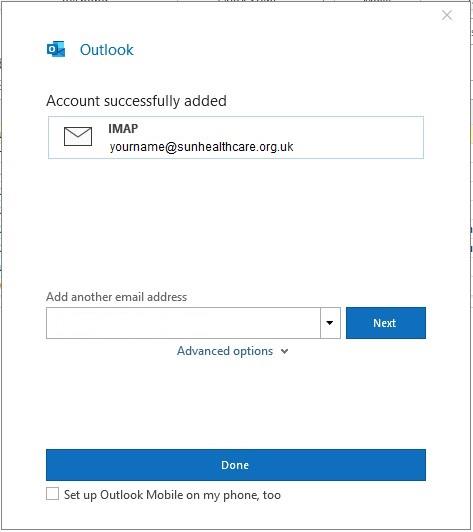
.... just click 'Done'
3. Untick the box '[X] Set up Outlook Mobile on my phone, too' and click 'Done'